Orra Key Pro User Manual
Version 1.0.0 • © 2026 Orra Audio LLC
Welcome
Orra Key Pro listens to whatever plays through its track and names the key and the scale: G minor, C Dorian, F Lydian. With it come the relative key, the codes DJ software uses, a MATCH percentage that says how sure it is, the next most likely keys, and the tuning in cents.
Then it puts the key to work, in three places:
- The chords of the key. Eleven tiles, built from the detected scale in seven chord types and six voicings. Click one to hear it, drag it into your DAW as a MIDI clip.
- The PROGRESSION strip. While your DAW plays a loop, Orra Key Pro hears its chords bar by bar, names famous progressions when it hears one, and lets you drag a chord or the whole progression into your DAW as MIDI.
- MATCHMAKER. Point it at your sample folders. It reads the key, tempo, chords and scale of every file and shows which ones fit your song, chord by chord. It previews them in time and in your key, and drags them into your project as you hear them.
Orra Key Pro never changes the audio on its track. It passes straight through with no latency; the only sound the plugin adds is the chord preview when you click a chord, and the sample preview from Matchmaker.
The manual runs front to back: the first chapters cover detection and the chords, then the progression strip, transposition, and four chapters on Matchmaker.
System Requirements
Formats
macOS: VST3, Audio Unit (AU), AAX (Pro Tools). Windows: VST3, AAX.
macOS
10.13 or later (Universal 2: Apple Silicon + Intel).
Windows
Windows 10 or later, 64-bit.
Channels
Mono or stereo, the same layout in and out. Both channels are analyzed together.
Latency
None. The audio passes straight through; the analysis runs on its own background thread.
Sample library
Matchmaker reads WAV, AIFF, FLAC, MP3, M4A, CAF and OGG files, up to 20,000 across your folders. Files are only read, never changed.
License
A free 14-day demo with every feature. Buy at orraaudio.com/products/orra-key-pro; one license activates up to 3 computers. Activation needs an internet connection once. Audio always passes through, licensed or not.
Getting Started
1. Insert it
Orra Key Pro is an audio effect. Insert it on the track you want to analyze: an audio track holding a sample or loop, an instrument track after the instrument, a bus, or the master to hear the whole song. It hears whatever arrives at its slot and needs no MIDI.
2. Activate it, or start the demo
The first time you open the window, a panel covers it: Orra Key Pro is not activated on this machine.
- Start 14-Day Demo unlocks every feature for 14 days. Nothing to type.
- Enter License Key, paste the key from your purchase email and click Activate. "Where's my license key?" opens the Orra Audio FAQ.
- Purchase Orra Key Pro opens the product page.
Every Orra Key Pro open on that computer follows within a second or so. When the demo ends the panel comes back with "Your 14-day demo has expired"; enter a license key to carry on. The track keeps playing either way: only the window and the analysis wait for the license.
3. Press play
Start playback. The LISTEN key glows with the incoming level, the status line reads LISTENING, and the key appears after a few seconds of tonal audio. While the word "settling" follows the MATCH percentage, the answer can still change; it goes away once about 9 seconds of tonal audio has been heard. Let a loop cycle a couple of times for a firm read, and loop it in your DAW for the PROGRESSION strip.
Whenever playback starts after the transport has been stopped for 2 seconds or more, Orra Key Pro starts a fresh listen by itself, so you can audition sample after sample on one track: stop, swap the sample, play. CLEAR does the same fresh start by hand.
4. Use the key
Click a chord tile to hear it or drag it into the arrangement; watch the progression strip fill in as the loop plays; choose your project's key under MATCH TO; or open MATCHMAKER and add a sample folder.
The license panel
Click the ORRA KEY PRO wordmark at the top left at any time. The panel shows the version, the license status (with the demo's days left), who it is licensed to, the activations used, and Deactivate, which frees this computer's activation so the license can be used on another one. Below are links to the website, support, this manual and Orra Audio's social pages. If the license server cannot be reached, Orra Key Pro stays activated offline.
Interface Tour
The window is a moss-green brushed-metal plate in five rows. Hover over anything for a tooltip.
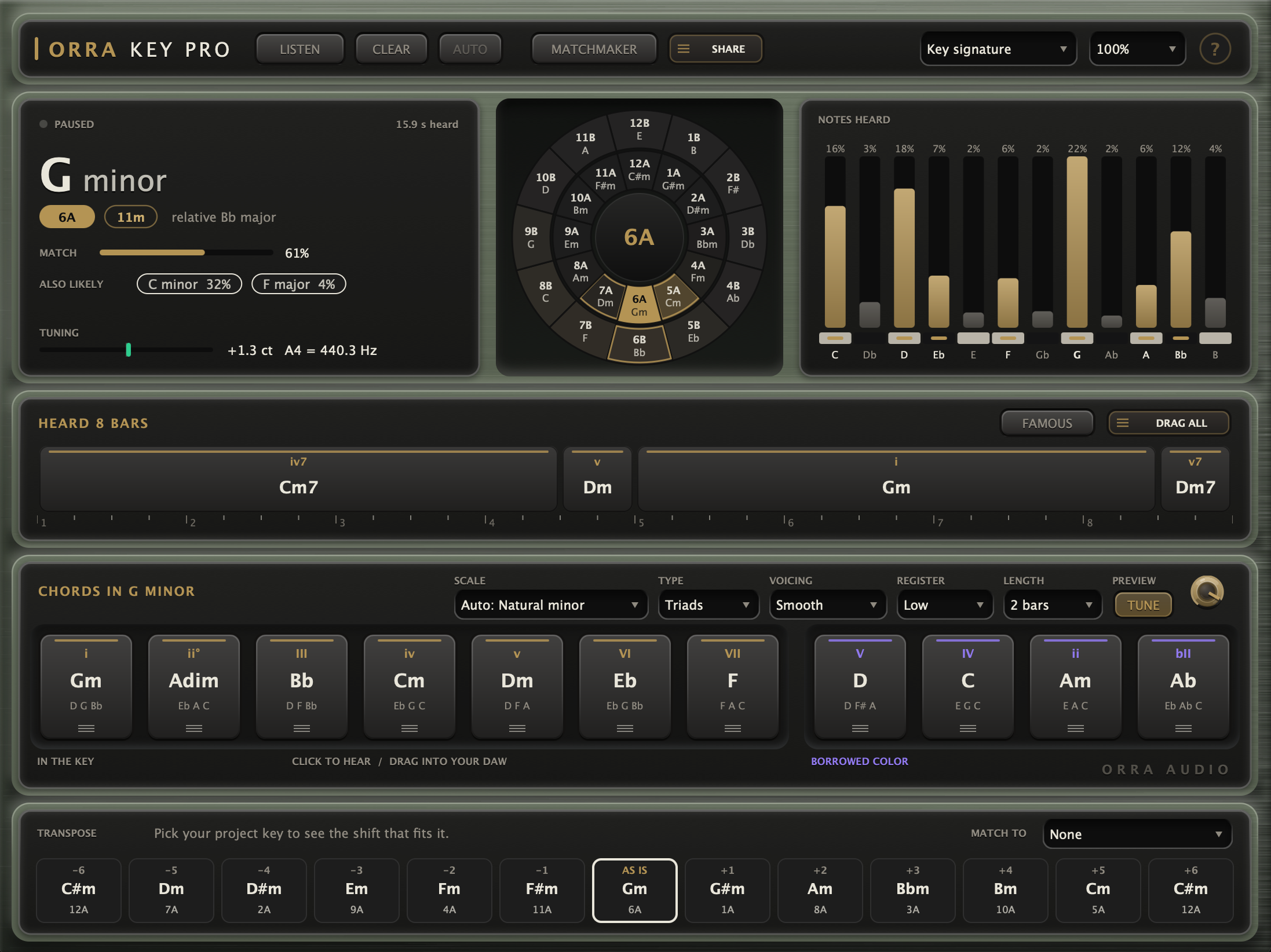
1. Header
The ORRA KEY PRO wordmark (license and info panel), then LISTEN (lit while analyzing; it glows with the incoming level), CLEAR (a fresh analysis) and AUTO (lit when you have picked a key or a scale yourself; click it to go back to the detected ones). Then MATCHMAKER, which opens the sample library over the window, and SHARE, the card of your key and progression. On the right: NOTATION, the UI scale menu (75-200 %) and the round ? key for the tooltips (right-click it for their language).
2. Key card, key wheel and NOTES HEARD
The result: the key and scale in large type with their codes, MATCH, ALSO LIKELY and TUNING (see Reading the Result); the 24 keys on the wheel; and twelve bars showing how much of each note has been heard.
3. PROGRESSION strip
The chords heard while your DAW plays, laid out on the loop's bars, with the loop length and, when it recognizes one, the name of a famous progression: 2-BAR LOOP | THE DORIAN VAMP (i-IV). FAMOUS and DRAG ALL sit at the right.
4. Chords card
Titled with the key and scale, for example CHORDS IN C DORIAN. Along the top: SCALE, TYPE, VOICING, REGISTER, LENGTH, and under PREVIEW the TUNE key and the level knob. Below them, seven gold tiles IN THE KEY and four violet BORROWED COLOR tiles.
5. Transpose card
Thirteen cells from −6 to +6 semitones with AS IS in the middle: the key the sample would be in after each shift. MATCH TO at the right takes your project's key.
6. MATCHMAKER (the drawer)
Covers the window while open. Its own toolbar (SYNC, STRETCH, IN KEY, ADD FOLDER, FITS / CLOSE / ALL), the search box, FILTERS, SORT, VOL, LEVEL MATCH, RENDER, your folders, the ranked list, and a waveform strip for the selected sample. Click MATCHMAKER again, or the ×, to close it.
Before the first key arrives, the key card shows "--" and the cards below show a short hint. You do not need audio to explore: click a key on the wheel and its chords appear.
Reading the Result
The key card, top to bottom.
| Readout | Meaning |
|---|---|
| Status line | LISTENING while LISTEN is on (the dot turns green while audio is arriving), PAUSED when it is off, MANUAL KEY when you have picked a key. At the right, the seconds of tonal audio heard since the last fresh start; silence and noise-like sound are not counted. |
| Key | The key that fits everything heard so far, with its scale when the notes say more than major or minor: G minor, C Dorian, Bb harmonic minor. See Scales. |
| Codes | The gold pill is the key wheel code: 1 to 12, plus A for minor or B for major (C major is 8B, A minor is 8A). The outlined pill is the same key in the d/m code some DJ software uses (C major is 1d, A minor is 1m). The codes always belong to the key, whatever its scale. |
| Relative | The relative major or minor: the same notes and chords, another home note (G minor → Bb major). For a scale, the line names the key with the same notes instead ("same notes as Bb major (6B)" for C Dorian) or says what sets it apart ("minor with a raised 7th"). |
| MATCH | How sure Orra Key Pro is of the scale, as a bar and a percentage. It counts the key and its relative together, because they share every note, and it is calibrated against labeled loops, so read it as a hit rate. "settling" follows it until about 9 seconds of tonal audio has been heard. |
| ALSO LIKELY | Up to two more keys from other scales, each counted the same way as MATCH, so MATCH and the chips never add up to more than 100 %. Keys under 3 % are not shown. Click a chip to use that key instead. |
| Hint | "Sounds like one note: F" (an 808, a bass one-shot) or "Sounds like one chord: Dm". With so little to go on, the key is a best guess; the note or chord is the solid fact. |
| TUNING | How far the material sits from A440, in cents, and the A4 it implies (+4.6 ct, A4 = 441.2 Hz). The meter spans ±50 cents and turns green within 5. Detune your synth by the same amount, or pitch the sample back. |
A steady readout
Once the key has settled, a different answer only takes over after it has held for 6 seconds of tonal audio, so near ties (a key and its relative, or keys a fifth apart) do not swap back and forth while the song plays. A fresh start, CLEAR or a reopened session shows the answer at once.
How Orra Key Pro listens
It measures how much of each of the twelve notes it hears (roughly 30 Hz to 2.5 kHz, tuning corrected), scores all 24 keys against that balance, then reads the scale from the notes that set that key's scales apart. Clicking tiles never changes the key.
Scales
Two loops can share a home note and a minor 3rd and still sound different: one plays the 6th a half step higher, the other the 7th. Those are scales (or modes). Orra Key Pro reads the scale on top of the key, from those deciding notes, and builds the chords, the gold notes and Matchmaker's colors from it.
| Scale | How it differs | Sound / where you hear it |
|---|---|---|
| major / minor | the plain scales | Everything else is measured against these. |
| Dorian | minor with a major 6th | Minor but warm; neo-soul, house, funk vamps (i-IV). |
| Phrygian | minor with a flat 2nd | Dark and tense; drill, metal, flamenco (i-bII). |
| harmonic minor | minor with a raised 7th | A dramatic V chord; trap, classical, film. |
| melodic minor | minor with a raised 6th and 7th | Jazzy, smooth; soul and jazz lines. |
| Lydian | major with a raised 4th | Bright and floating; film, dream pop (I-II). |
| Mixolydian | major with a flat 7th | Bluesy major; rock, funk, Afro (I-bVII). |
| Phrygian dominant | major 3rd, flat 2nd and 6th | Middle Eastern, Spanish; drill and reggaeton hooks. |
Detected
The scale appears once the key has settled, and a new reading takes over after it has held for another few seconds. It needs the deciding note: a loop that never plays its 6th cannot tell Dorian from natural minor, and stays plain. A loop that uses both versions of a note (minor with both bVII and V, say) also stays plain; the borrowed chords already describe it. The key itself (the home note, major or minor, the codes) is never changed by the scale.
The SCALE menu
At the left of the chords card. Auto: Dorian (or Auto: Natural minor, Auto: Major) shows the reading; below it, the scales that suit the key in use. Pick one to use it instead: AUTO in the header lights, and clicking AUTO puts back both the detected key and the detected scale. A picked scale also applies to the MATCH TO key when it suits it; picking a key on the wheel that the scale does not suit (Lydian on a minor key) returns SCALE to Auto.
What follows the scale
The key readout, the gold bars in NOTES HEARD, the seven IN THE KEY tiles (with numerals against the scale's own notes: in D Dorian, i ii III IV v vi° VII), the four BORROWED COLOR tiles, the progression strip's numerals, MIDI clip names, the share card, and in Matchmaker the chord colors, the ranking and IN KEY. The key wheel, the DJ codes and the transpose strip stay the key's.
The Key Wheel
The key wheel lays out all 24 keys so that neighbors are musically close. It is the same numbering DJs use for harmonic mixing, and a fast way to pick a key by hand.
| On the wheel | Meaning |
|---|---|
| Outer ring | The 12 major keys, codes 1B to 12B. |
| Inner ring | The 12 minor keys, codes 1A to 12A, each under its relative major: 8A (A minor) under 8B (C major). |
| Order | 12 at the top, like a clock. One step clockwise is up a fifth; one step counter-clockwise is down a fifth. |
| Shading | Brighter keys are more likely. Shown while Orra Key Pro follows the detection. |
| Solid gold | The key in use, detected or picked. Its code is repeated in the hub. |
| Gold outline | Keys that mix cleanly with it: one step either way around the same ring, and its relative in the other ring. |
| White outline | The key the transpose strip is showing, when a shift is selected. |
| Blue dot | Your MATCH TO key. |
Picking a key
Click any key on the wheel to use it. The key card says MANUAL KEY; the chords, the NOTES HEARD colors, the transpose strip and Matchmaker follow your choice; and AUTO lights. Use this when you know better, to work in the relative key, or with no audio at all, to explore the chords of any key. Clicking an ALSO LIKELY chip does the same. The analysis keeps listening underneath: the key card shows "Detected: ... (AUTO goes back)". Click AUTO to go back to the detected key and scale.
NOTES HEARD
Twelve bars, C to B. Each bar's height is relative to the loudest note, and the percentage above it is that note's share of everything heard. Gold bars are notes of the scale in use (the detected or picked scale); the rest are gray. The keyboard strip below marks the scale notes in gold, and the home note is printed in bold. Note names follow NOTATION; a scale's notes take one letter each (A harmonic minor has a G#, not an Ab).
NOTES HEARD always shows the audio as it plays, not the transposed view. A tall gray bar is worth a look: a borrowed chord, a bent blue note, or a sign that another key fits nearly as well (check ALSO LIKELY).
Chords of the Key
Eleven tiles for the key and scale in use: seven gold tiles IN THE KEY and four violet tiles of BORROWED COLOR, under a title like CHORDS IN C DORIAN (plus (SAMPLE +2) with a transpose cell selected).
Reading a tile
At the top, the Roman numeral: the chord's step in the scale. Upper case is major, lower case minor, ° diminished, ø half-diminished, + augmented; extensions add their number or name (V7, Imaj7, IVsus4). Below it, the chord name and the notes it plays, low to high, spelled the way the chord is written: D7 reads D F# A C, never D Gb A C. The three short lines at the bottom are the drag grip.
Click to hear, drag into your DAW
- Click and hold a tile to hear the chord on a soft electric-piano voice. It sustains while you hold and rings out when you let go; the tile glows with the sound.
- Drag a tile (hold and move a few pixels) and it becomes a MIDI clip: drop it on a track in your DAW.
In the key
The seven chords built by stacking thirds on each step of the scale. Major: I, ii, iii, IV, V, vi, vii°. Natural minor: i, ii°, III, iv, v, VI, VII. Every other scale gives its own seven, named against its own notes.
Borrowed color
Four chords from outside the scale that producers reach for all the time. Each comes from a scale one or two notes away, so it sounds like a change of light rather than a wrong note.
| Scale | Borrowed | Where they come from |
|---|---|---|
| major | bVI, bVII, iv, III | Parallel minor; III leads into vi. |
| minor | V, IV, ii, bII | Harmonic minor, Dorian, Phrygian. |
| Dorian | bVI, iv, V, bII | Natural minor, harmonic minor, Phrygian. |
| Phrygian | I, V, VII, v | Phrygian dominant, harmonic and natural minor. |
| harmonic minor | bVII, III, v, bII | Natural minor, Phrygian. |
| melodic minor | bVI, bVII, iv, III | Natural minor. |
| Lydian | IV, ii, bVII, bVI | Major, Mixolydian, minor. |
| Mixolydian | V, iv, bVI, bIII | Major, parallel minor. |
| Phrygian dominant | i, bIII, VII, v | Phrygian, natural minor. |
A borrowed chord keeps its own accidental (bVI in G major is Eb, not D#) and is extended within the scale it comes from (V7 in A minor is E7: E G# B D).
Chord Options & MIDI Clips
The controls along the top of the chords card shape what you hear and what you drag, from the tiles and from the progression strip.
| Control | Options | What it does |
|---|---|---|
| SCALE | Auto / the key's scales | Which scale the chords are built from. See Scales. |
| TYPE | Triads / 7ths / 9ths / sus2 / sus4 / add9 / 6ths default Triads | All built from the scale. A step with no clean version of the type keeps its triad (there is no Fsus4 in C major: its 4th would be B). 9ths leave out a harsh b9 or #9: those steps stay 7th chords. |
| VOICING | Close / Smooth / Open / + Bass / Drop 3 / Spread default Smooth | Close: root position. Smooth: the inversion nearest the middle of the register, so chords one after another barely move. Open: a triad becomes root, fifth and the third an octave up; a 7th or 9th drops its second-highest note an octave. + Bass: Close plus the root an octave lower. Drop 3: the third note from the top drops an octave. Spread: root low, fifth above it, the rest an octave up (pads). |
| REGISTER | Low / Mid / High default Mid | Around the octave that starts at MIDI note 48, 60 (middle C) or 72. |
| LENGTH | 1 / 2 / 4 bars default 2 bars | How long a dragged tile's clip is, in bars of your session's time signature. |
| PREVIEW | −36 to 0 dB default −12 dB | Volume of the chord preview, through this track's output. In the host it is Preview Level, the plugin's only parameter. |
| TUNE | on / off default on | When lit, the preview follows the detected tuning. Off: A440. MIDI clips are plain MIDI notes either way. |
What lands in your DAW
- A standard MIDI file with one track, every note at velocity 100, with the voicing and register you chose. A tile's clip holds the chord for LENGTH; a progression block holds it for its own length.
- The clip carries the session's tempo and time signature (120 BPM in 4/4 if the host reports none).
- The file is named after the chord (Am7.mid, C#m.mid), so most DAWs name the clip after it too. Drop it on an instrument track. The files are written to a temporary folder Orra Key Pro tidies after ten minutes.
With VOICING on Smooth, drag I, V, vi and IV one after another: each takes the inversion closest to the middle of the register, so the voices move by small steps without editing.
The Progression Strip
Loop a region in your DAW and press play. Orra Key Pro follows your session's bars and beats, hears which chord sounds on each beat, finds how long the loop is, and lays the chords out on its bars. Every pass of the loop sharpens the answer.
Reading it
- The title gives the loop length (1, 2, 4 or 8 bars) and, when the chords make one, the name of a famous progression: 4-BAR LOOP | THE AXIS PROGRESSION (I-V-vi-IV).
- Each block is a chord, as long as it lasts, with its numeral in the key and scale in use. A chord changes where new notes start, so a pushed chord (struck on beat 4) lands where it was played, and a fading chord's tail is not read as a new chord.
- Chord types heard: major, minor, diminished, 7, maj7, m7 and m7b5. Richer chords (9ths, sus, add9) read as the nearest of these.
- The ruler under the blocks counts the bars.
Hear it, drag it
- Click a block to hear that chord as it was heard (Cm7 stays Cm7), voiced with VOICING and REGISTER from the chords card.
- Drag a block into your DAW: a MIDI clip of that chord, exactly as long as the block.
- DRAG ALL: the whole progression as one MIDI clip, exactly loop-length, voiced to flow from chord to chord. Loop it in your DAW and it lines up with the sample.
FAMOUS
Classic progressions in your key, ready to hear and drag: the Axis progression (I-V-vi-IV), doo-wop, the Royal Road, Pachelbel, three-chord, the Mario cadence, Creep, the plagal and Mixolydian vamps, pop minor, the Andalusian cadence, epic minor, the Aeolian descent, the harmonic minor cadence, the minor lift, and the Dorian, Phrygian and minor plagal vamps, built with TYPE, VOICING and REGISTER. A progression written for the other mode moves to the relative key, so it uses the same notes. DETECTED goes back to what was heard.
SHARE
Click SHARE to save a card of what Orra Key Pro found (key and scale, codes, MATCH, tuning, the notes, the progression and its famous name) as a 1080 × 1350 image, the shape of a portrait post. Or drag the SHARE handle straight into Discord, a browser or a folder.
The strip needs the transport playing: without bars and beats from the host there is no grid to place chords on (a standalone app has no transport). The heard progression is saved with your session.
Transpose & MATCH TO
The transpose card answers two questions: what key will this sample be in if I pitch it, and how far do I pitch it to fit my song? The transpose card itself never pitches the audio: use your DAW's or sampler's transpose control with the numbers shown here. (Matchmaker's IN KEY does pitch its previews; see Matchmaker: Listening.)
The transpose strip
Thirteen cells, from −6 to +6 semitones, with AS IS in the middle. Each cell shows the shift, the key the sample lands in, and that key's wheel code. Click a cell to see that key's chords: the chords card switches to it and its title says, for example, (SAMPLE +2); the wheel outlines that key in white. Pitch the sample by the same amount and drag chords that already fit it. Click the cell again to go back to AS IS.
MATCH TO
Choose your project's key in the MATCH TO menu (each entry shows its wheel code, for example Bb minor (3A); None turns it off). Then:
- The cell whose key is your project key, or its relative, fills gold: that is the shift that fits.
- Cells that land on a neighboring key (one step around the wheel, same ring) are outlined in gold.
- The line beside TRANSPOSE spells it out: "Shift +2 (or -10) to sit in C major". Both moves reach the same key; the smaller one usually keeps the sample closer to its original character. With no shift needed it says "Already in ..." or "Already fits ..." (as its relative).
- A blue dot marks the MATCH TO key on the wheel, and Matchmaker ranks your library against it.
- A scale picked in SCALE applies to the MATCH TO key too, when it suits it (Dorian on a minor key). When a scale is involved, the line compares notes: "Shift +2 to sit in D Dorian (same notes)", or "Closest: shift +3 (1 note differs from ...)".
Why the relative counts
A minor sample can sit in a major song, and the other way round, as long as the notes agree. An A minor loop fits a C major song as is: the same notes, the same chords. So Orra Key Pro keeps the sample's own mode and aims for the project key's relative when the modes differ. A G minor loop in a C major song: Shift +2, to A minor, C major's relative.
The strip and the chords follow the key in use: detected, or picked on the wheel or from ALSO LIKELY. Picking a new key on the wheel resets the strip to AS IS. The cells name keys, not scales: a Dorian sample moved +2 shows the key it lands in.
Matchmaker: Your Library
Matchmaker reads every sample in your folders (its key, tempo, chords and scale) and shows which ones fit your song, chord by chord. Click MATCHMAKER in the header to open it over the window; click it again, or the ×, to close it.
Your song's key
Matchmaker ranks against your MATCH TO key when one is set, otherwise against the key in use (detected or picked) and its scale. The line at the top says so: "Ranked against C Dorian (5A)", or "Moved into ..." with IN KEY on. Before there is a key it says "Pick a key (MATCH TO) or play your song".
Adding folders
- Click ADD FOLDER, or drop folders from Finder or Explorer onto Matchmaker. Add as many as you like; subfolders are included. Your sample folders work well.
- Each folder appears as a chip. Click a chip to show only that folder (click again for all). The × removes it from the list; nothing on disk is touched. When there are more than fit, a chip opens the full list.
- The list belongs to you, not the project: every Orra Key Pro, in every project and every DAW, shares it.
The first scan
The first time Matchmaker opens in a DAW session it reads the folders, and the status at the right counts up: "scanning 1,200 / 4,228". You can browse while it runs. For each file it reads:
- The key, from the first 45 seconds, the same way as the plugin's own detection. A key in the file name (Loop_Dmin, F#m, Bb_major) is taken as the producer's word.
- The tempo, from the file's loop information (ACID or Apple Loops), then a BPM in its name, then a length of whole bars.
- The chords, for files with a tempo, played through the same chord tracker as the progression strip.
- The scale, and whether it sounds like drums (used when the name says nothing).
Everything is kept in a cache, so the next open is quick: only files that are new or changed are read. Files longer than 10 minutes (songs, stems) are listed as "not a sample". Up to 20,000 files are listed.
New samples
Matchmaker looks for samples you have added, changed or deleted each time it opens and when you come back to your DAW from Finder or Explorer; only those are read. REFRESH, at the right of the folders, looks right away.
Matchmaker: The List
| Column | Shows |
|---|---|
| ▶ and ☆ | Play the preview; star a favorite. |
| SAMPLE | The file name. While you search, a dim note after it says where a word was found when the name does not show it. |
| KEY | The key from the name, or what was heard: Dm 7A (heard, 73%). A scale is named (D Dorian 7A), a label the analysis disagrees with says so ((label; heard Am)), and with IN KEY the move follows (Em 9A −2 → Dm). |
| BPM, LENGTH | The tempo, and the length in bars (or seconds without a tempo). |
| FIT | How it fits your song: one colored block per chord, or a word (below). |
FITS, CLOSE, ALL
FITS: what fits as it is (or once moved, with IN KEY). CLOSE adds what mostly fits, a neighboring key or a small shift. ALL: every file. The best fits come first.
Judged by its chords
A sample whose chords say which key they are in (clear chords, three or more different ones) is judged chord by chord against your key and scale:
- Green: every note of the chord is in your scale. A plain minor key also allows its raised 7th, so V and vii° fit.
- Yellow: one of the BORROWED COLOR chords for your key and scale, or only the chord's 7th is outside it.
- Red: it clashes.
The share of the loop that fits decides the row: FITS from 85 % (every chord green, or one borrowed color among four), CLOSE from 60 %, CLASH below that.
Judged by its key
Everything else is judged by its key (the name's, else what was heard): one-shots, drum loops, files without a tempo, and lines and one- or two-chord loops, which fit too many keys to say. The FIT column then says:
| FITS | Your key. |
| RELATIVE | Your key's relative: the same notes. |
| SAME NOTES | Another key or scale with exactly your notes (an E Phrygian loop in an A minor song). |
| NEIGHBOR | One step on the key wheel, or one note apart. |
| SHIFT +3 | It fits once moved this many semitones (IN KEY does it for you). |
Matchmaker: Listening
Click a row to open its waveform. Click ▶, or double-click the row, to hear it; again to stop. A preview plays through this track's output and never changes the key analysis. Rows you have heard turn a little dimmer.
| Control | What it does |
|---|---|
| SYNC | While your DAW plays, a preview waits for the top of the next bar (the ▶ shows an outline while it waits), then loops in time with your song, follows its loop and jumps, and stops with the transport. Stopped, it plays at once. On by default. |
| STRETCH | Previews play at your song's tempo, pitch unchanged, so a loop lines up bar for bar. A loop at half or double your tempo plays in half or double time. On by default. |
| IN KEY | Previews move into your song's key, by −5 to +6 semitones: a sample judged by its chords takes the smallest move that makes its chords fit; anything else moves its key onto yours (or onto your relative). The list then ranks what fits once moved. Voices keep their character (a name with vocal, vox, voice, acapella, choir, adlib or chant). Drum samples stay put unless their name has a key. Off by default. |
| VOL | How loud sample previews play, separate from the chord preview. Double-click for full level. |
| LEVEL MATCH | Every sample previews at about the same loudness (−18 LUFS), so a hot loop after a quiet one does not jump out. Off: as recorded, except that a sample moved or stretched is turned down if it would peak above −1 dBFS. |
SYNC, STRETCH, IN KEY, VOL and LEVEL MATCH are your settings: every Orra Key Pro, in every project, remembers them.
The waveform strip
At the bottom, for the selected row: the name, then what is known (120 BPM (from the file name) | 4-bar chord loop | moved +2 (IN KEY) | 4 of 4 chords fit C minor), and over the waveform one block per chord, named as it will sound and colored like the FIT column (FITS THE KEY, BORROWED COLOR, CLASHES). A bass line, lead or vocal shows its notes instead of chords. Click a chord to hear the sample from there.
Stars and history
Click the ☆ on a row to star it; find your stars with FILTERS > FAVORITES or "is:fav". Rows you have heard turn dimmer and can be filtered too (NOT HEARD, HEARD). Both are kept in every project; the history holds the newest 5,000 files, and CLEAR HISTORY in FILTERS forgets it. Searches and filters start fresh with each session.
Matchmaker: Search & Filters
Type in the search box and the list narrows as you type; the space bar types a space here, it does not start your DAW. Return or APPLY keeps the search as a chip, ready for the next one; Esc clears the box.
| Type | Finds |
|---|---|
| piano dark | Both words. |
| -drums | Not this word. |
| "vocal chop" | The exact phrase. |
| keys|piano | Either one. |
| bpm:120, bpm:118-124 | A tempo or range; also bpm:<100, bpm:>140. |
| bars:4, len:<8 | Length in bars, or in seconds. |
| key:Am, key:8A | A key by name or code. |
| scale:dorian, dorian | Samples read in a scale (scale:modal for any, scale:plain for none). |
| type:chords | A type: chords, melody, bass, drums, vocal, fx, oneshot, loop. |
| is:fav, is:heard, is:new | Starred, heard before, not heard yet. |
How words match
- Whole words: the start of a word (drum finds Drums and DrumLoop), or the end of one with four letters or more (loop finds DrumLoop); hat finds HiHat. A word never matches inside another: sub does not find "Subliminal". Spellings meet: lofi finds Lo-Fi, hiphop finds Hip_Hop, dnb finds Drum & Bass.
- "No" counts: a loop named no_kick or without vocals is not found by kick or vocal.
- Folders: a category folder (Drum_Loops, One_Shots/Kicks) counts like the name; a pack name counts for styles (house, trap, lofi), not instruments.
- drums, vocals, bass also find what the plugin knows is that type, named or not.
- When the word is not in the name, the row says where it was found: "in: Drum_Loops", "pack: Redline Tech House", "drums", "read as Dorian".
Chips and FILTERS
Under the folders, a row of chips shows what narrows the list: your applied searches and every FILTERS value. A sample must match every chip. The × removes one, and CLEAR ALL removes them all. FILTERS opens a panel: TYPE (chords, melody, bass, drums, vocals, fx), FORM (loops, one-shots), TEMPO (near my tempo, within 8 %, half and double time counted, or a range), LENGTH, SHOW (favorites, not heard, heard) and FOLDER. Types come from the name and the chords, and for a name that says nothing, from the sound: drums are recognized by ear. SORT: best fit, name, BPM, length, newest or key-wheel order.
Matchmaker: Dragging & RENDER
Drag a sample
Drag a row into your DAW. With RENDER on, you get the sample as you hear it: in your key and at your tempo (with IN KEY and STRETCH), exactly its bars long, as a new file with RENDER's settings. A sample that is not moved and needs no change comes as the original file. Hold Option (Alt on Windows) as you start the drag for the original file every time.
Drag a chord, or a run of chords
- Drag a chord out of the waveform strip: that slice of the sample, as you hear it, exactly the chord's beats, so it lines up and loops on your grid.
- Shift-drag: the chord as MIDI, moved by IN KEY and voiced like the progression strip.
- Option-drag (Alt on Windows), or with RENDER off: the slice of the original file.
- Cmd-click (Ctrl on Windows) a second chord to select the run between; drag any chord in it to drag the whole run as one slice or MIDI clip. Cmd-click an end chord to drop it.
RENDER
| Setting | Options | Notes |
|---|---|---|
| On / Off | On (default) | Off: every drag drops the original file. |
| Bit depth | automatic / 16-bit / 24-bit / 32-bit float | Automatic: 24-bit, or 32-bit float when the moved sound would clip. 16-bit is dithered. |
| Sample rate | same as the sample / your session's / 44.1-96 kHz | Converted cleanly, with no added latency. |
| Level | pack, peaks under −1 dB / pack, untouched / −18 LUFS | The default keeps the pack's level and only turns down a moved sample that would peak above −1 dBFS. |
| Fade the cuts | off (default) / on | 1 ms fades on dragged chords, so a cut through a sustained sound never pops. |
| Save to | Music/Orra Key Pro | Or a folder you choose; Show in Finder (Explorer) opens it. |
Files go to Music/Orra Key Pro/Matched/<pack>, named after the original with its key and BPM rewritten (OS_RJ_160_Em_Honey_Keys_1 → OS_RJ_92_Dm_Honey_Keys_1), and carry their tempo. Dragging the same thing again reuses the file. Your projects point at them, so delete them yourself.
Settings, Languages & Mouse
NOTATION
Key signature (the default) spells notes the way the key signature writes them: Bb in F major, A# in B major, and a scale's notes one letter each. Every chord tone takes its proper letter (D7 is D F# A C). Sharps and Flats spell every note one way. NOTATION applies everywhere, Matchmaker included.
UI scale
75 % to 200 % in steps of 25, from the menu next to the ? key. Saved with the session; if a saved size is too big for the screen, the window steps down until it fits.
Tooltips & languages
The round ? key turns the hover tooltips on and off (on by default). Right-click it for TOOLTIP LANGUAGE: English, Dutch, Japanese, Spanish, Brazilian Portuguese, German or French. Control names such as LISTEN or MATCHMAKER stay in English, so the tips match the panel.
Saved with your session
LISTEN, NOTATION, SCALE, the chord options and TUNE, the PREVIEW level, a key picked on the wheel, the selected transpose cell, MATCH TO, the UI scale and the tooltip settings. The analysis and the heard progression are saved too: a reopened project shows its key, chords and progression without playing a note.
Matchmaker's folders, SYNC, STRETCH, IN KEY, VOL, LEVEL MATCH, RENDER, stars and history are yours rather than the project's: every Orra Key Pro on the computer shares them.
Keyboard & mouse
| Click / drag a chord tile | Hear it / drop a MIDI clip. |
| Click / drag a progression block | Hear it / drop it as MIDI. DRAG ALL: the whole loop. |
| Click a key on the wheel, an ALSO LIKELY chip | Use that key. AUTO goes back. |
| Click a transpose cell | Show that key's chords; click again to go back. |
| Click / drag SHARE | Save the card / drop it into another app. |
| Matchmaker: click a row / ▶ or double-click | Show its waveform / play it. |
| Drag a row | As you hear it (RENDER on); Option or Alt: the original. |
| Drag a chord in the waveform | Its slice; Shift: MIDI; Option or Alt: the original's slice. |
| Cmd-click (Ctrl) a chord in the waveform | Grow or shrink a run of chords. |
| Drag the PREVIEW knob | Up or right for louder; hold Shift for finer control. |
Good to Know
A stop of 2 seconds starts a fresh listen
The analysis clears itself when playback starts after a stop of 2 seconds or more. Silence during playback never resets it. To keep a result as it is, turn LISTEN off: the readout freezes. Everything heard since the last fresh start counts toward one key; if a song changes key, press CLEAR at the new section.
Short fragments can fit several keys
A three-note bass line or a pentatonic vocal can belong to more than one key. Check ALSO LIKELY and NOTES HEARD, and if the rest of your song settles it, pick that key on the wheel. Drum loops still get a key (toms, a tuned kick, an 808); a low MATCH is the tell.
A scale name can look odd
The home note comes from the key detection. When a loop is heard from another home, its scale is named from that home (an A minor loop heard as F Lydian); the notes, chords and colors are still right, and the line under the key says "same notes as C major (8B)". Pick the key you hear on the wheel if you prefer its name.
The progression strip needs the transport
Chords are placed on your session's bars, so the strip fills only while the DAW plays. A pad that changes chord without a new attack can land a beat late.
Matchmaker reads chords from loops with a tempo
A file with no loop information, no BPM in its name and no whole-bar length gets a key but no chords. A wrong key in a file name is believed, as the producer's word; the KEY column shows when the analysis heard something else.
Previews and fine tuning
IN KEY moves whole semitones. A sample tuned well away from A440 (see TUNING) can still sound a little off against your song; pitch it by the cents shown.
After an update
When an update improves how samples are read, Matchmaker reads your library once more the first time it opens; the status counts up as during the first scan.
Previews play through the track
Chord and sample previews come out of this track's output, after Orra Key Pro, so the track's fader and later plugins affect them. If a preview is silent in Logic, select the track or start playback: some hosts pause a plugin while the transport is stopped.
Credits & Support
The key model blends two published key profiles: the Aarden profile, derived from the Essen folk-song collection (B. Aarden, Dynamic Melodic Expectancy, PhD dissertation, Ohio State University, 2003), strong on sparse material such as a vocal or a bass line; and the Bgate profile for electronic dance music from A. Faraldo, S. Jordà and P. Herrera, "A Multi-Profile Method for Key Estimation in EDM", AES International Conference on Semantic Audio, 2017, strong on full mixes. Orra Key Pro uses the published profile values; the analysis itself is Orra Audio's own.
Drum detection in Matchmaker uses harmonic / percussive separation by median filtering (D. FitzGerald, "Harmonic/Percussive Separation using Median Filtering", DAFx 2010), implemented by Orra Audio.
Third-party software
STRETCH and IN KEY use Signalsmith Stretch 1.4.0, Copyright © 2022 Geraint Luff / Signalsmith Audio Ltd., and Signalsmith Linear 0.6.4, Copyright © 2025 Signalsmith Audio, both under the MIT License:
Permission is hereby granted, free of charge, to any person obtaining a copy of this software and associated documentation files (the "Software"), to deal in the Software without restriction, including without limitation the rights to use, copy, modify, merge, publish, distribute, sublicense, and/or sell copies of the Software, and to permit persons to whom the Software is furnished to do so, subject to the following conditions:
The above copyright notice and this permission notice shall be included in all copies or substantial portions of the Software.
THE SOFTWARE IS PROVIDED "AS IS", WITHOUT WARRANTY OF ANY KIND, EXPRESS OR IMPLIED, INCLUDING BUT NOT LIMITED TO THE WARRANTIES OF MERCHANTABILITY, FITNESS FOR A PARTICULAR PURPOSE AND NONINFRINGEMENT. IN NO EVENT SHALL THE AUTHORS OR COPYRIGHT HOLDERS BE LIABLE FOR ANY CLAIM, DAMAGES OR OTHER LIABILITY, WHETHER IN AN ACTION OF CONTRACT, TORT OR OTHERWISE, ARISING FROM, OUT OF OR IN CONNECTION WITH THE SOFTWARE OR THE USE OR OTHER DEALINGS IN THE SOFTWARE.
VST is a trademark of Steinberg Media Technologies GmbH. Audio Unit and macOS are trademarks of Apple Inc. AAX and Pro Tools are trademarks of Avid Technology, Inc. All other names belong to their owners.
Orra Key Pro is a product of Orra Audio LLC. © 2026 Orra Audio LLC. For support, updates, and documentation, visit orraaudio.com/support.